Pages

Showing posts with label Visual Studio 2013. Show all posts

March 3, 2015

Solving Junk Output During Project Build in Visual Studio 2013

Symptoms


I had this weird situation a while ago. A developer can build a project successfully and show the normal details (couple of lines) in output window. However, when I access the same machine, the same Visual Studio instance, and builds the same project then the project builds okay, but output window will display a lot of weird &  junk details, contains inconsistencies with .NET assemblies. This behavior will occur for all projects, even for empty projects coming from VS templates before any custom code added..

I tried the following actions but did not fix it:
  • Clean the build &rebuild
  • Close project & re-open
  • Restarting Visual Studio
  • log-out from machine then log back in


Cause
It appeared that something went wrong with my profile cache within Visual Studio.


Solution
The solution I found is to delete the Visual Studio cache. Not a perfect solution but it works!

Important: Please understand that deleting the cache will make you lose all of your personal settings in VS. You can export the settings first so you can have a backup before you proceed.

Steps
1. Delete the contents from the following folders:
  • C:\Users\<<Your Alias>>\AppData\Local\Microsoft\Team Foundation\5.0\Cache
  • C:\Users\<<Your Alias>>\AppData\Local\Microsoft\VisualStudio \12.0\ComponentModelCache
  • C:\Users\<<Your Alias>>\AppData\Local\Microsoft\VSCommon
2. From command prompt run the "devenv /resetuserdata" command:
  • For 64 bit: C:\Program Files (x86)\Microsoft Visual Studio 10.0\Common7\IDE
  • For 32 bit: C:\Program Files\Microsoft Visual Studio 10.0\Common7\IDE


December 7, 2014

DXImageTransform Fail With a Warning Unexpected Character Sequence In Property Value


When you have a CSS filter in your project in Visual Studio 2013, you will get a validation warning for ‘:’ and ‘,’ characters (I highlighted in yellow):

Example: 
filter:progid:DXImageTransform.Microsoft.Gradient (GradientType=0,StartColorStr='#fdfdfe',EndColorStr='#f5f2ec');

Warning: “Unexpected character sequence in property value.

 
Outcome: The effect will NOT work in the page, and IE will show an invalid style:


Let me guess..its obsolete stuff, right? Answer is yes.
          
DirectX based (DX) filters including “DXImageTransform” are obsolete
See: http://msdn.microsoft.com/en-us/library/ms532997(v=vs.85).aspx


Also, Microsoft “-ms-filter”: Microsoft proprietary filter is obsolete since IE10


Solution:

Use new filter standards that match your browser from table below. For a complete List of filters and new standards here.


IE Browser 
Supported Gradient Filters
IE 6
IE 7
filter: progid:DXImageTransform.Microsoft.gradient(startColorstr='#2F2727', endColorstr='#1a82f7', gradientType='0');

IE 8
IE 9
-ms-filter: "progid:DXImageTransform.Microsoft.gradient(startColorstr='#2F2727', endColorstr='#1a82f7', gradientType='0')";

IE 10
background: -ms-linear-gradient(top, #2F2727, #1a82f7);

background: linear-gradient(to top, red, blue); /* Standard syntax (must be uses as last style) */

background-image: -ms-linear-gradient(top, #FFFFFF 0%, #CCCCCC 100%);

background: radial-gradient(red, green, blue); /* Standard syntax */

background: repeating-radial-gradient(red, yellow 10%, green 15%);

IE 11
(based on CSS3)
background: -ms-linear-gradient(#2F2727, #1a82f7);

background-image: -ms-linear-gradient(#FF0000 0%, #CCCCCC 100%);

background: linear-gradient(to top, red, blue);


November 17, 2014

Error: feature with ID is not installed in this farm and cannot be added to this scope


Error:
In Visual Studio 2013 or 2010 when you are trying to deploy your feature (using the default Active Deployment) and your SharePoint farm has a multiple servers, then it will fail to deploy the solution & activate the features, and will throw the following error message:
 “Error occurred in deployment step ‘Activate Features’: feature with ID '{guid}' is not installed in this farm, and cannot be added to this scope.”
Also, the solution will show ‘Not Deployed’ in Farm solutions page in Central Administration


Reason:
This is a bug in Visual Studio 2013 (see this post for same issue in VS2010). Visual Studio uses the Microsoft.SharePoint.Administration.SPSolution.DeployLocal() method that can only deploy/activate features on local machine when its the only server in farm.


Objective:

To preserve the way the developer works. Developer need not worry about target environment (number of servers in farm for example), and should not need to run PowerShell commands every time the code changes. Developer should only use the Build > Deploy menu item in Visual Studio as usual, and the deploy process should figure it out how to install the package & features.


Solution:

Its actually a workaround until Microsoft fix with their Visual Studio. The idea is to replace Visual Studio feature activation action by a PowerShell script that will make sure the feature was installed then activated properly. The script is to be called as a post-deployment command.


Tested with:

Visual Studio 2013 Update 2, and SharePoint 2013 Visual Web Part


How To Use:
1- Make sure that path of your project does not contain spaces
     Example: “D:\TeamShared\iibraheem\PSproj\PSproj”


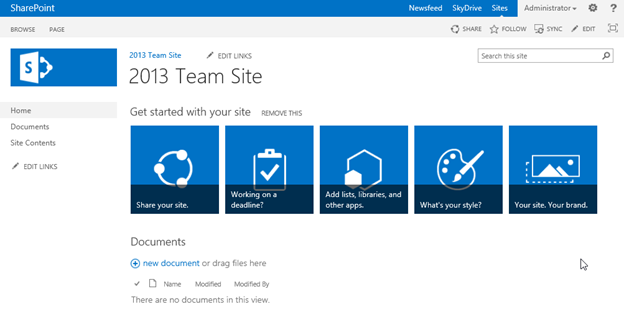
2- If you are using Visual Studio 2013 to target SharePoint 2013: Make sure that you set the ‘Site Url’ property of your project to target a SharePoint 2013 site that has the new SP2013 UI.


The reason is that your Visual Studio 2013 visual web part will NOT work for a SharePoint 2013 site that has a SP2010 UI (coming from a SP2010 db upgrade). 3-Adding the script
     3.1-Add the script file (Example: PostDeployScript_Feature.ps1) to project at root level:


     3.2- Edit script file: set the parameters $Url and $FeatureName. $FeatureName is in the format of   ‘ProjectName_FeatureName’ (without quotes) and has nothing to do with feature title 2.


4- Go to project properties > SharePoint tab


    4.1-Set Active Deployment Configuration to ‘No Activation’


    4.2- Paste the below command in Post-Deployment Command Line box:

  • Show Then Hide PS console (recommended):
%SystemRoot%\sysnative\WindowsPowerShell\v1.0\powershell "start-process powershell.exe -ArgumentList '$(ProjectDir)PostDeployScript_Feature.ps1'"
  • Keep visible PS console (for debugging):
%SystemRoot%\sysnative\WindowsPowerShell\v1.0\powershell "start-process powershell.exe -ArgumentList '-NoExit', '$(ProjectDir)PostDeployScript_Feature.ps1'"


5- Save the project


6- Build > Deploy

    Check PowerShell console window:
    It stays visible if ‘-NoExit’ parameter used, otherwise it will close automatically:


Now, check the target site for changes:

  • Feature to be added to the required scope (for example a specific site collection)
  • Web part will be added to Web Parts gallery at the site collection
  • Web part can be inserted to page. If previously added to a page, the page will show the updated web part

Below are the contents of PostDeployScript_Feature.ps1:


# This is a Post-Deployment PowerShell script to be called from Visual Studio to automate feature deployment

# Developed by: Ibraheem A. Ibraheem

# Feel free to adjust to your needs


# Parameters

$Url = "https://servername.domain.com"

# $FeatureName is in the format: [ProjectName_FeatureName] and has nothing to do with feature title

$FeatureName = "PSproj_Feature1"


write-host "Started.."


# When PowerShell version is 2 or more, create new thread for 1st invocation then reuses it

$ver = $host | select version.

if ($ver.Version.Major -gt 1) {

       $host.Runspace.ThreadOptions = "ReuseThread"

       write-host "ReuseThread"

}


# Add SharePoint snap-in if needed

if ((Get-PSSnapin "Microsoft.SharePoint.PowerShell" -ErrorAction SilentlyContinue) -eq $null) {

    Add-PSSnapin "Microsoft.SharePoint.PowerShell"

}

write-host "Microsoft.SharePoint.PowerShell snap-in is loaded."


# If feature already enabled then disables & retract it

$feature = Get-SPFeature -Site $Url | Where {$_.DisplayName -eq $FeatureName}

if ($feature -ne $null) {

       write-host "Feature found in target site " $Url

       Disable-SPFeature -Identity $FeatureName -Url $Url -confirm:$false

       write-host "Feature deactivated."

       Uninstall-SPFeature $FeatureName

       write-host "Feature uninstalled."

}

else{

       write-host "Feature was not found in target site: " $Url

}


# installing the feature

Install-SPFeature -Path $FeatureName

echo ""

write-host "Feature installed to 15 hive."


# If feature already enabled then disable it, because the enable is not complete (web parts are not copied


# to web part gallery in site collection)

# Note: feature will get automatically enabled when installed if scope is either 'SiteCollection' or 'Web'

$feature = Get-SPFeature -Site $Url | Where {$_.Displayname -like $FeatureName}

if ($feature -ne $null) {

       Write-Host "Feature is already activated at: " $Url

       Disable-SPFeature -Identity $FeatureName -Url $Url -confirm:$false

       write-host "Feature deactivated."

}

else {

       Write-Host "Feature is not activated at: " $Url

}


# Enable the feature

Enable-SPFeature -Identity $FeatureName -Url $Url

Write-Host "Feature got activated at: " $Url


write-host "Finished."