Pages

Showing posts with label error. Show all posts

January 18, 2015

Fixing deploymet error: The feature is not a Farm Level feature and is not found in a Site level defined by the Url

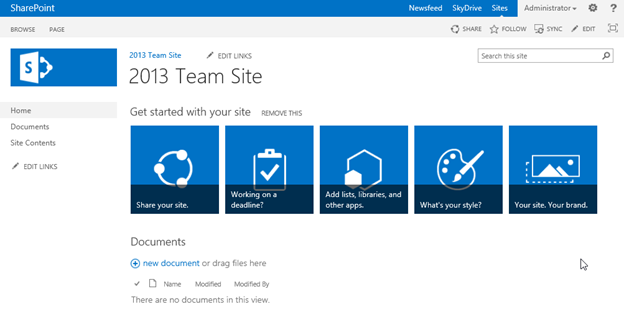
If you have a SharePoint 2013 site that was migrated from SP2010 but the visual upgrade was not performed, then it will be on SP2010 UI mode as you can see in Fig #1 below (unlike the case of a brand new SP2013 or after the visual upgrade as in Fig #2).


Figure #1 -  Sharepoint 2013 with SP2010 UI


Figure #2 – SharePoint 2013 with SP2013 UI


So in SharePoint 2013 site with SP2010 UI mode, if you are deploying a feature (for example a visual web part) through Visual Studio or PowerShell then the following occurs:
  • The feature is scoped to "Site", and Activate on Default is set to true.
  • Active deployment configuration is default\
  • Solution will be added to farm
  • Feature will be installed on farm, and feature files will be copied to features folder in 15 hive (\15\TEMPLATE\FEATURES).
  • .Dll files will be deployed to GAC or local bin folder
  • User controls will be copied to control templates folder in 15 hive (\15\TEMPLATE\CONTROLTEMPLATES).
  • Feature is not added to site collection features page.
  • Enable-SPFeature command will fail with error message:
    The feature is not a Farm Level feature and is not found in a Site level defined by the Url [Site Collection Url].
  • The .webpart file will not be copied to Web Parts Gallery (_catalogs/wp) in target site collection.
  • Web part cannot be added to any page.

Solution:
Use CompatibilityLevel parameter in Install-SPSolution PowerShell cmdlet to deploy the solution in either or both 14 & 15 hives:

Install-SPSolution -identity SolutionName.wsp -GACDeployment -CompatibilityLevel{14,15} -WebApplication https://ServerName.Domain.com
Also, you can apply the CompatibilityLevel parameter to Enable-SPFeature cmdlet to activate individual features in either or both hives.

January 4, 2015

Cannot Edit And Save Documents In Client Program or Open From Explorer SharePoint 2013

The users complain from 2 problems, so let's describe the situation:

Problem 1: Document Edit/Save in client doesn't work
When user clicks on a document link in document library to open in edit mode (through a browser popup or from client program), the client program (for example MS Word) opens the document. However, user will not be able to save back to server, because when he clicks on ‘Save’ button, it will display the ‘Save As’ dialog box where user can only select local destination to save the file. Also, if it was a Microsoft Office document, user can click on File tab and sees that the document is in ‘Read Only mode’ even though he opened it with edit mode.
Problem 2: Open With Explorer doesn't work either!


Here are the environment details:
  • This is a fresh SharePoint 2013 installation (Out-of-box)
  • Some Web Applications are on port 80 (http) while others are on port 443 (https)
  • WFE Servers configurations: Installed Desktop Experience feature on WFE servers, enabled WebClient service to run automatically, library contribute permissions are set correctly. Users tested as site members and as site collection administrator, removed all Office 2013 products from WFE servers including SharePoint Designer 2013.
  • Client machine configurations: Office 2010 installed, added site to Trusted Sites zone, installed Add-ons for IE


Errors in logs:

Digging into ULS resulted in finding the following errors for w3wp.exe process:
Failed to get document content data. System.ComponentModel.Win32Exception (0x80004005): Cannot complete this function     at Microsoft.SharePoint.SPSqlClient.GetDocumentContentRow(Int32 rowOrd, Object ospFileStmMgr, SPDocumentBindRequest& dbreq, SPDocumentBindResults& dbres)     cda7da9c-4e98-509a-9976-8129b3f554cb
Could not get DocumentContent row: 0x80004005.
Failure when fetching document. 0x80070012


Root Cause:

Actually this is is really about one thing: the SharePoint WebDav. Both features 'Document Edit/Save'  'Open In Exporer' depend on it.
Document edit mode uses SharePoint WebDav http calls to upload the document back to target location (i.e. Document Library) when document is saved in client program (such as MS Word). 
When user clicks 'Save' button in client program, the client program has to discover if server supports required protocols including WebDav service (this is called Office Protocol Discovery). The client program checks first for cached info (called Office Protocol Discovery Cache) in client machine. This depends if there was a prior successful call to the same resource (i.e. the Doc Library). The cache is a windows registry key: HKEY_CURRENT_USER\Software\Microsoft\Office\[Version]\Common\Internet\Server Cache

If there is no value for the target location folder in that key , then browser will try to initiate an http OPTIONS request to ask for folder info, and will require separate authentication. Otherwise, if there is a sub-key value for the target location folder, then no need to initiate OPTIONS request and automatic logon will proceed automatically. 

When client program initiates an OPTIONS request (and in some cases it needed to initiate PROPFIND requests too), The OPTIONS request is getting rejected. This is because of an IIS settings coming from IIS-lockdown script that disallow the ‘OPTIONS’ http verb from being processed. As a result, SharePoint never received the call for edit and assumes the default Read-Only mode. The client program will get an HTTP 404 (not found error).

Refer to the following useful links for more info:


 Solution:

IIS must allow the ‘OPTIONS’ http verb to be used.
For a specific web application, check if IIS is blocking ‘OPTIONS’ verb (the ‘Allowed’ value is set to false).  To fix this, remove the ‘OPTIONS’ entry from Request Filtering section in IIS, this will affect web.config file for target web app only. You must do this for all WFE servers where the web applications are available.
The same change can be applied for the entire farm, and this will affect applicationhost.config file.
Now both saving from client and 'Open with Explorer' features work!

Example:
I used Fiddler to show the inner data of what's going on for a sample document inside Shared Documents library: /sites/IIbraheemTestSite/Shared%20Documents/TestDoc.docx

Before Change After Change
OPTIONS request

Failed
Succeed
Registry folder sub-key in client machine No data stored
Data stored

Hope that helps!

November 17, 2014

Error: feature with ID is not installed in this farm and cannot be added to this scope


Error:
In Visual Studio 2013 or 2010 when you are trying to deploy your feature (using the default Active Deployment) and your SharePoint farm has a multiple servers, then it will fail to deploy the solution & activate the features, and will throw the following error message:
 “Error occurred in deployment step ‘Activate Features’: feature with ID '{guid}' is not installed in this farm, and cannot be added to this scope.”
Also, the solution will show ‘Not Deployed’ in Farm solutions page in Central Administration


Reason:
This is a bug in Visual Studio 2013 (see this post for same issue in VS2010). Visual Studio uses the Microsoft.SharePoint.Administration.SPSolution.DeployLocal() method that can only deploy/activate features on local machine when its the only server in farm.


Objective:

To preserve the way the developer works. Developer need not worry about target environment (number of servers in farm for example), and should not need to run PowerShell commands every time the code changes. Developer should only use the Build > Deploy menu item in Visual Studio as usual, and the deploy process should figure it out how to install the package & features.


Solution:

Its actually a workaround until Microsoft fix with their Visual Studio. The idea is to replace Visual Studio feature activation action by a PowerShell script that will make sure the feature was installed then activated properly. The script is to be called as a post-deployment command.


Tested with:

Visual Studio 2013 Update 2, and SharePoint 2013 Visual Web Part


How To Use:
1- Make sure that path of your project does not contain spaces
     Example: “D:\TeamShared\iibraheem\PSproj\PSproj”


2- If you are using Visual Studio 2013 to target SharePoint 2013: Make sure that you set the ‘Site Url’ property of your project to target a SharePoint 2013 site that has the new SP2013 UI.


The reason is that your Visual Studio 2013 visual web part will NOT work for a SharePoint 2013 site that has a SP2010 UI (coming from a SP2010 db upgrade). 3-Adding the script
     3.1-Add the script file (Example: PostDeployScript_Feature.ps1) to project at root level:


     3.2- Edit script file: set the parameters $Url and $FeatureName. $FeatureName is in the format of   ‘ProjectName_FeatureName’ (without quotes) and has nothing to do with feature title 2.


4- Go to project properties > SharePoint tab


    4.1-Set Active Deployment Configuration to ‘No Activation’


    4.2- Paste the below command in Post-Deployment Command Line box:

  • Show Then Hide PS console (recommended):
%SystemRoot%\sysnative\WindowsPowerShell\v1.0\powershell "start-process powershell.exe -ArgumentList '$(ProjectDir)PostDeployScript_Feature.ps1'"
  • Keep visible PS console (for debugging):
%SystemRoot%\sysnative\WindowsPowerShell\v1.0\powershell "start-process powershell.exe -ArgumentList '-NoExit', '$(ProjectDir)PostDeployScript_Feature.ps1'"


5- Save the project


6- Build > Deploy

    Check PowerShell console window:
    It stays visible if ‘-NoExit’ parameter used, otherwise it will close automatically:


Now, check the target site for changes:

  • Feature to be added to the required scope (for example a specific site collection)
  • Web part will be added to Web Parts gallery at the site collection
  • Web part can be inserted to page. If previously added to a page, the page will show the updated web part

Below are the contents of PostDeployScript_Feature.ps1:


# This is a Post-Deployment PowerShell script to be called from Visual Studio to automate feature deployment

# Developed by: Ibraheem A. Ibraheem

# Feel free to adjust to your needs


# Parameters

$Url = "https://servername.domain.com"

# $FeatureName is in the format: [ProjectName_FeatureName] and has nothing to do with feature title

$FeatureName = "PSproj_Feature1"


write-host "Started.."


# When PowerShell version is 2 or more, create new thread for 1st invocation then reuses it

$ver = $host | select version.

if ($ver.Version.Major -gt 1) {

       $host.Runspace.ThreadOptions = "ReuseThread"

       write-host "ReuseThread"

}


# Add SharePoint snap-in if needed

if ((Get-PSSnapin "Microsoft.SharePoint.PowerShell" -ErrorAction SilentlyContinue) -eq $null) {

    Add-PSSnapin "Microsoft.SharePoint.PowerShell"

}

write-host "Microsoft.SharePoint.PowerShell snap-in is loaded."


# If feature already enabled then disables & retract it

$feature = Get-SPFeature -Site $Url | Where {$_.DisplayName -eq $FeatureName}

if ($feature -ne $null) {

       write-host "Feature found in target site " $Url

       Disable-SPFeature -Identity $FeatureName -Url $Url -confirm:$false

       write-host "Feature deactivated."

       Uninstall-SPFeature $FeatureName

       write-host "Feature uninstalled."

}

else{

       write-host "Feature was not found in target site: " $Url

}


# installing the feature

Install-SPFeature -Path $FeatureName

echo ""

write-host "Feature installed to 15 hive."


# If feature already enabled then disable it, because the enable is not complete (web parts are not copied


# to web part gallery in site collection)

# Note: feature will get automatically enabled when installed if scope is either 'SiteCollection' or 'Web'

$feature = Get-SPFeature -Site $Url | Where {$_.Displayname -like $FeatureName}

if ($feature -ne $null) {

       Write-Host "Feature is already activated at: " $Url

       Disable-SPFeature -Identity $FeatureName -Url $Url -confirm:$false

       write-host "Feature deactivated."

}

else {

       Write-Host "Feature is not activated at: " $Url

}


# Enable the feature

Enable-SPFeature -Identity $FeatureName -Url $Url

Write-Host "Feature got activated at: " $Url


write-host "Finished."


December 6, 2013

Issue: Starting a service crashes SharePoint site with unknown error


Issue:

After you stop a service (such as User Profile Synchronization or Search service) and try to start it again in Central Administration, the SharePoint 2010 site pages will crash with an unknown error.


Analysis:

Prior to the issue, the password was changed for the services account in SharePoint. However all services were working.

Searching the cascading numerous errors in ULS to find the root cause kept my head spinning for hours. I knew that issue was because of the password change in services account but couldn't spot where is the start point to fix.
Some of the error messages I found in IIS log:
- "Application pool 15f65d1adf954fa68aee81f7bcb9cec8 has been disabled. Windows Process Activation Service (WAS) encountered a failure when it started a worker process to serve the application pool."
- Another message is that the account may need batch logon permissions.

 then I had a clear image of what happened:

  1. The service (User Profile Synchronization service or Search service) tries to start
  2. Service fails to start because its application pool in IIS could not login 
  3. Since its application pool is down, it will bring down all the services that are running on it. If User Profile service is working on this application pool then it will stop. Also if Metadata service is working on this application pool then it will stop, and bring down the Profile service as well since User Profile depends on Metadata.
  4. All content on SharePoint pages (such as pages, web parts,..) requires a valid user login to display according to user permissions. Since User Profile service is down, current user cannot be verified and SharePoint shows unknown error.

I already made sure that that the service account has the necessary permissions and that services and service applications are setup correctly on CA. Also the application pool account is using the correct password.
Well, it didn't work! Every time I try to start the application pool in IIS it stops after couple of seconds. Agrrrrrr...

It appeared that the faulty application pool "15f65d1adf954fa68aee81f7bcb9cec8" in IIS becomes corrupted object and will not work.


Solution:

Relocate applications that are on corrupted application pool into another one with exact same settings.
First, make a backup for WFE and APP servers.
Depending on your current configurations, make the following changes in IIS in WFE and APP servers:

  1.      Create new AppPool “MetadataCustomAppPool” as copy of the corrupt AppPool but using new password  for service account
  2.      Move “metadata” and “Profile” applications from corrupt AppPool to   “MetadataCustomAppPool” AppPool.  This is useful when other service is down (and     subsequently its AppPool is down too), it will not affect the Metadata/User Profile and the   SharePoint site will continue to work.
  3.     If other service applications are in corrupt AppPool, then you can relocate them into MetaDataCustomAppPool or create a new AppPool for them as appropriate.
  4.      Restart IIS


June 10, 2013

Error: site template requires that the Feature be activated in the site collection

Scenario:
You want to create a site template and use it across your environments such as different site collections. In source Site Collection, you create a site and add content such as web parts, lists..etc. You save that site as a template. In destination Site Collection, you upload that template into Solution Gallery and activate it. Then you try to create a site based on the template, but it fails with the error:

The site template requires that the Feature {FeatureID} be activated in the site collection


The quick solution is go to Site Settings -> Site Collection Features and activate the missing feature then try again. Easy huh?
It depends!.. The problem arise when the missing features are not available in your destination environment such as a 3rd party solution that was installed only in source environment.
An alternative is to abandon this site template, and create a fresh site on the destination site collection to ensure that all features are available before creating the template to be used on the destination. This is only good when the site template is not complex to re-create such as when only small amount of customization had applied to source site. But recreating a full customized site that contains a lot of custom lists and web parts will take long hours or days. Another alternative is to go low-level, fix the template and make it work!


Error Analysis:

Let's first see what's happening. Digging for error details in ULS logs show us this:


SPException thrown: Message: The site template requires that the Feature {eb657559-be37-4b91-a369-1c201183c779} be activated in the site collection.. Stack:    
at Microsoft.SharePoint.Utilities.SPUtility.ThrowSPExceptionWithTraceTag(UInt32 tagId, ULSCat traceCategory, Str
ing resourceId, Object[] resourceArgs)     
at Microsoft.SharePoint.SPWebTemplateElement.VerifyFeatures(XmlNodeList xmlNodeFeatures, SPWe
b applyTemplateToThisWeb, Boolean checkIsFeatureActivatedInSiteCollection)     
at Microsoft.SharePoint.SPWebTemplateElement.VerifyFeaturesInWebTemplate(SPWeb applyTemplateToThisWeb)     
at Microsoft.SharePoint.SPWeb.LoadFeatureWebTemplateContent(SPFeatureWebTemplate featureWebTemplate)     
at Microsoft.SharePoint.SPWeb.ApplyWebTemplate(String strWebTemplate)     
at Microsoft.SharePoint.Solutions.AddGallery.AddGalleryWebPart.CreateSite()
..

Let's have an insider look at the Microsoft.SharePoint.DLL. The following is the code for VerifyFeatures() method in SPWebTemplateElement.cs class file:

private void VerifyFeatures(XmlNodeList xmlNodeFeatures, SPWeb applyTemplateToThisWeb, bool checkIsFeatureActivatedInSiteCollection)
        {
            if ((xmlNodeFeatures != null) && (xmlNodeFeatures.Count != 0))
            {
                foreach (System.Xml.XmlNode node in xmlNodeFeatures)
                {
                    XmlElement element = (XmlElement) node;
                    XmlAttributeCollection attributes = element.Attributes;
                    if (attributes != null)
                    {
                        System.Xml.XmlAttribute attribute = attributes["ID"];
                        if (attribute != null)
                        {
                            Guid guid = new Guid(attribute.Value);
                            SPFeatureDefinition definition = SPFarm.Local.FeatureDefinitions[guid];
                            if (null == definition)
                            {
                                definition = applyTemplateToThisWeb.Site.FeatureDefinitions[guid];
                            }
                            if (null == definition)
                            {
                                SPUtility.ThrowSPExceptionWithTraceTag(0x67323467, ULSCat.msoulscat_WSS_FeaturesInfrastructure, "CannotFindFeatureInstalledSpecifiedInWebTemplate", new object[] { guid.ToString("B") });
                            }
                            if ((checkIsFeatureActivatedInSiteCollection && !applyTemplateToThisWeb.IsRootWeb) && (applyTemplateToThisWeb.Site.Features[guid] == null))
                            {
                                SPUtility.ThrowSPExceptionWithTraceTag(0x67323468, ULSCat.msoulscat_WSS_FeaturesInfrastructure, "CannotFindFeatureActivatedSpecifiedInWebTemplate", new object[] { guid.ToString("B") });
                            }
                        }
                    }
                }
            }
        }


The code reveals that it iterates against all features in the template, and is checks if each feature  is installed then checks if it's activated. The highlighted code in Yellow shows where the error message is being thrown.
In our case we are missing a feature whose ID is: eb657559-be37-4b91-a369-1c201183c779, but  are there other missing features I should worry about? Let's open the template itself.

1. Either import the web template .wsp file using Visual Studio (using the ‘Import SharePoint Solution Package’ project option), or convert the .WSP into .CAB then extract the solution folder.
2. Go to ONet.xml (in Web templates -> Name Template)
3. In <Configurations> section, search inside <SiteFeatures> for missing features in your environment


The Nintex Worklfow solution was installed in my test source Site Collection (but not on destination).
I activated two 3rd party features on Site Collection level. The SiteFeatures section in ONet.xml has the following:
  • "Nintex Workflow 2010" with an ID: 0561d315-d5db-4736-929e-26da142812c5,
  • "Nintex Workflow 2010 Web Parts" has ID: eb657559-be37-4b91-a369-1c201183c779, 
  • and "NintexWorkflowContentTypeUpgrade" with ID: 86c83d16-605d-41b4-bfdd-c75947899ac7
The Nintex Workflow solution is not installed on the destination site collection, and hence these features cannot be installed/activated there.

Note: to know if the missing feature belongs to SP2010 OTB, then check if it exists in this list here.

So here is what's happening:

- the template .wsp file comes with a number of feature IDs that were part of the site collection and site when template created on source environment.
- When the template is installed & activated on destination environment, it tries to reference these features. If one feature does not exist (not installed) or not activated then an SPException error will be thrown.
- As we saw in verifyFeatures() method, the code throws an exception at the first feature missing and abort the site creation but will not give a list of other missing features. This is a drawback in design because it makes it difficult for the Administrator to fix it.


Solution:
Comment out or delete the entries of missing features.

  1. Open the template's ONet.xml to comment or delete every missing feature whether in SiteFeatures or in WebFeatures sections that you cannot activate in your environment, until the resulting template is workable.
  2. Build the project in VS to produce new web template, or repackage the folder into .CAB then save as .WSP file.

Note: If we comment only the first feature, save the template file and upload to Solutions Gallery then create the site then we see a similar error but this time it is regarding a different feature with ID: 86c83d16-605d-41b4-bfdd-c75947899ac7
Which is the next missing feature in line as you can see in the ONet.xml image above.


After you complete the 'cleaning work', your template can now work as charm and the new site was created successfully on destination site collection :)


May 8, 2013

Site creation error: the folder does not exist


I have a SharePoint 2010 team site which has a doc lib called "Process Deliverables" and it contains folders with numbered names:


'0.SOW – Charter'
'1.Review Decision Report'
'2.Final Deliverables'

I saved this site into a template with its content successfully. When trying to create a site based on the template, it throws an error:
"Adding properties to the folder with url {..} failed while activating feature, the folder does not exist."

The url here is: ‘Process Deliverables/0.SOW – Charter’


Analysis:
I renamed the first folder '0.SOW – Charter' into '0_SOW – Charter' (without quotes). Then saved the site as a template and tried to create a site based on it. It threw a different error with similar message:


Here the url is: 'Process Deliverables/1.Review Decision Report'. This means the first folder passed successfully but the next folder item in the library fails.


Cause & Solution:
Special characters such as " # % & * : < > ? \ / { | } ~ . generally cannot be used in folder names. 
A complete list of these characters here.
In our case: the dot (.) is allowed but must be not consecutively used neither at the start nor the end of name. However, for some reason it is appearing to be causing the error here. Rename your folder if they have any of the above including the dot, example:

'0_SOW – Charter'
'1-Review Decision Report'
'2) Final Deliverables'


Now save your site as a template and create sites happily!


January 17, 2013

Digging on Could not find this Item error in SharePoint


I worked on this error a while ago when I was trying to replicate what was happening to a client's environment. When you want to upload EXE and DLL files to a document library in SharePoint using Explorer View, the operation fails with the following annoying error msg:

"Could not find this item
This is no longer located in \\sitename\DavWWWRoot. Verify the item's location and try again."

Of course uploading these types of files into SharePoint is highly not recommended due to security reasons, this is why they are on the blocked file types in Central Admin but for some companies it is a requirement.
You can find the complete error description and solution here, thanks to Stanislaw Delost!

But I wanted to see for myself what is the 'item' that is not being found as indicated by the error msg.
So, I built a small Windows program to imitate the exact operation of Explorer View's operation of copying the wanted files from a source folder into the desired doc library's WebDav folder.


And the error stack trace:

System.IO.FileNotFoundException was unhandled

  Message=Could not find file '\\dev\DavWWWroot\test\AERotatorWebpart.dll'.
  Source=mscorlib
  FileName=\\dev\DavWWWroot\test\AERotatorWebpart.dll
  StackTrace:
       at System.IO.__Error.WinIOError(Int32 errorCode, String maybeFullPath)
       at System.IO.File.InternalCopy(String sourceFileName, String destFileName, Boolean overwrite)
       at System.IO.File.Copy(String sourceFileName, String destFileName)


The code is simple. I used the program to copy normal document files and images and it worked just fine. When I used it to copy EXE and DLL files the program crashed. As you can see the exception msg in .NET is "Could not find file "\\ServerName\DavWWWroor\DocLibName\FileName.DLL"
and the exception is of type FileNotFoundException.
It looks like that it couldn't find the file that we want to copy in the first place..weird!!

Explorer View operation uses WebDav protocol and agents that get installed with SharePoint.
When WebDav detects a file of type .EXE or .DLL, it runs 2 handlers in IIS: CGI-exe (for EXE files), and ISAPI-dll (for DLL files). My guess is that these programs are trying to access our files from the doc lib folder (destination) before the copying operation completed, so it will not find the file and an error occurs. 

As mentioned in details in Delost's blog, the solution is to prevent the CGI-exe and ISAPI-dll handlers from running in IIS by removing the EXECUTE permission in Hanlder Mappings in IIS.